
Starting a change
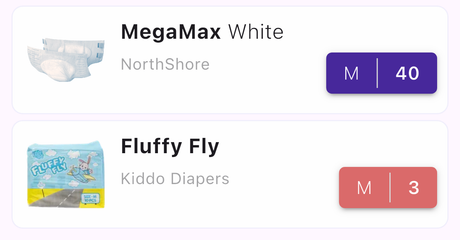
Every diaper type card on the Stock page has a row of size/quantity buttons. Each button is the fastest way to log a change.
The size buttons
A button shows the size label on the left and the remaining count on the right, separated by a thin divider — for example L | 14.
- Purple — enough in stock.
- Red — below the low-stock threshold for this type.
- Grey — cannot be used right now (empty, read-only, or a booster with no change in progress).
For a reusable diaper the count is shown as clean / total, and a laundry icon
marks the group that needs washing. For an infinite stock the count is shown as ∞.
Tapping a button
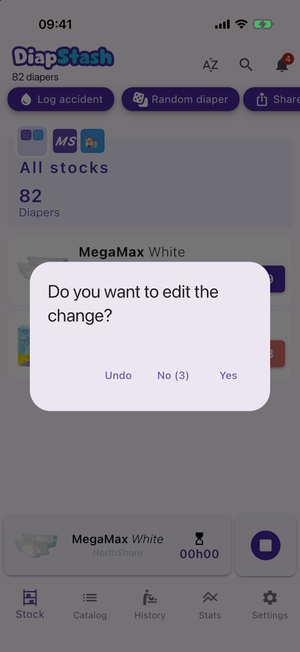
- No change in progress — tapping immediately starts a new change with that diaper. DiapStash then asks Do you want to edit the change?, with an undo option that puts the diaper back in stock.
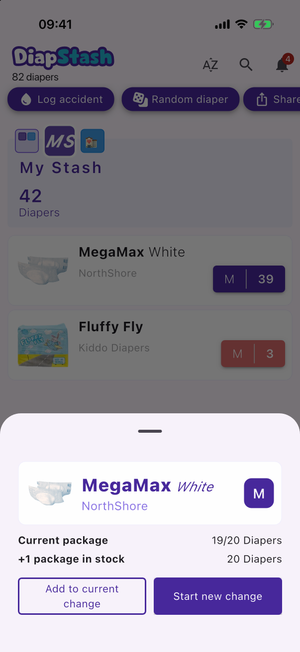
- A change is already in progress — if Display action buttons when starting a new change is enabled for that diaper type, tapping opens an action sheet instead (see below).
- Long-press any usable button to always open the action sheet.
The action sheet
The sheet shows the type and size, a summary of the current package and any further packages in stock, and two buttons:
- Add to current change — adds this diaper to the change you are already wearing (disabled when no change is in progress).
- Start new change — closes the current change and starts a new one.
In the "all stocks" view
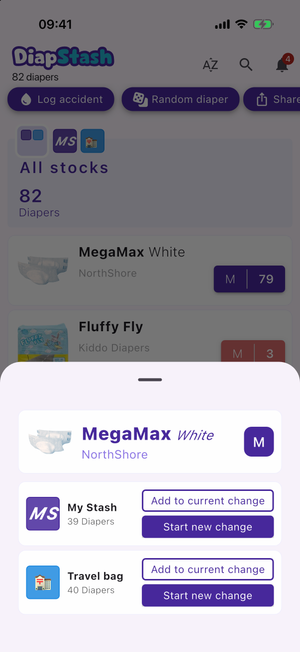
When the all stocks badge is selected, a size button sums that size across every stock, so DiapStash cannot know which stock to draw from. Tapping the button opens a sheet listing each stock that holds the size, with its badge, name and count. Pick a stock there, then choose Add to current change or Start new change — the same two actions as the action sheet.
Boosters
A booster button is disabled until a change is in progress — You cannot use a booster without a diaper. Once you have a change in progress, tapping the button adds the booster to it (Booster added to your current change.).