
Catalog & type details
The Catalog is the community-maintained database of adult diapers. Each entry is a diaper type; a type can have several sizes and several variants (gender, colour or design versions of the same product).
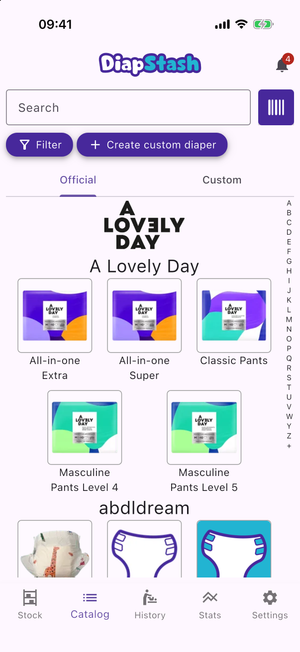
The catalog list
- Search field — filter types by name.
- Barcode-scan button — scan a package to jump straight to a type (and add it to your stock).
- Filter action — hide types using your catalog filters. A warning appears when filters are hiding results.
- Create custom diaper— start a new custom type.
- Official / Custom tabs — shown once you have at least one custom type. Official entries are maintained by the community; Custom entries are yours.
- Types are grouped by brand, with a Favorites group at the top and an Other group for types with no brand.
Each tile shows the image, the type name (and variant name in lighter text), the number
of variants, and tags such as (booster), Reusable and (discontinued). Tap a tile
to open the type page; long-press a custom tile to edit it.
The type page
Sections, from top to bottom:
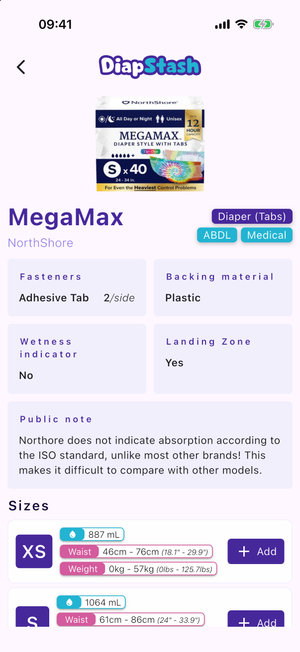
Header
The image carousel, the type name, the brand, and chips for the category (purple) and each target (blue). A star button marks the type as a favourite (shown when the type has no variants).
Features
A grid of feature cards:
- Fasteners — the fastener type, with the number of tabs per side when known.
- Backing material.
- Wetness indicator — Yes / No, plus the indicator type.
- Landing Zone — Yes / No.
Empty fields read Not specified. If the type has a community note, a full-width Public note card is shown.
Sizes
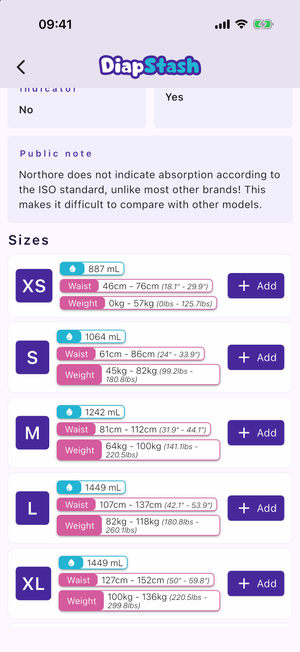
One row per size, merging catalog sizes with any size you only have in your stock. Each row has:
- The size badge.
- A blue absorption chip (
### mL) when the absorption is known. - One pink size recommendation chip per fit guideline (a category and a weight/waist range).
- The number in your stock, an Edit button (when you have stock in that size) and an Add button. See Managing your stock.
A ? card at the end lets you add a size that is not listed: select it, type the size name, and it is added to your stock.
Variants
Shown only when the type has variants. A horizontal list of variant cards, each with
its image, name, a favourite toggle and a Discontinued tag when relevant.
Resellers
Shown only when reseller data is available. A banner with the number of shops that sell the type, and how many are in your region. Tap it to open the reseller list.
Informations, Personalization and Rating
The last three sections — personal notes and custom fields, image overrides, and community ratings — are covered in Ratings, personalization & custom fields.