
Stock
Managing your stock
Add, adjust, and move diapers between stocks
Add diapers to your stock
Diapers are always added from the Catalog, so that every stock entry is linked to a real diaper type and size.
- Open the Catalog and go to the diaper type's page.
- In the Sizes section, find the size you want and tap Add.
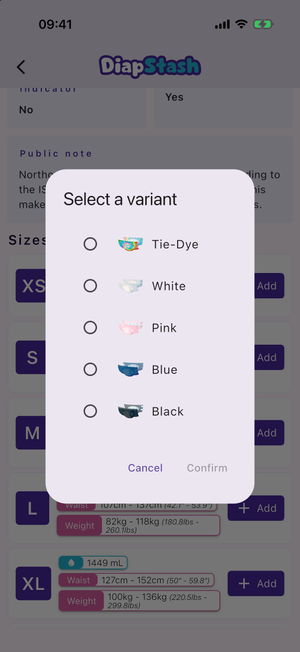
- If the type has variants and you did not open a specific one, pick one in the Select a variant dialog and tap Confirm.
- The Add to your stock sheet opens. Fill it in and tap Add.
The "Add to your stock" sheet
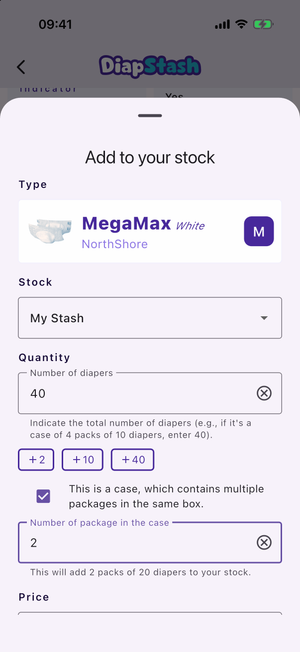
- Type — a summary card of the type, variant, brand and size you are adding.
- Stock — the stock the diapers go into. This dropdown is hidden (and the stock fixed) when you opened the sheet from within a specific stock.
- Quantity
- Number of diapers — the total number to add. For a case, enter the grand total of all packages.
- Quick-add +N buttons add your configured predefined bag sizes to the current total.
- This is a case, which contains multiple packages in the same box. — when checked, enter the Number of package in the case. The total must divide evenly by the number of packages.
- Price (disposable diapers only) — a value with a Total / per-diaper mode toggle, a computed per-diaper readout, and a suggestion to reuse the last price you entered for this type and size. The price you enter feeds the average-cost figures on the Stats tab.
- For reusable diapers, instead of a price you get a Requires wash after use switch (on by default).
- Preview — a summary of the count, packages and per-diaper price once the total is valid.
On success, a confirmation shows how many diapers were added and your new total.
You can also start this flow by scanning a barcode from the Catalog search bar.
Adjust the count of a stock
- On the diaper type's page, in the Sizes section, tap Edit on the size (shown only when that size already has stock).
- The stock-edit page opens with one section per stock. Each stock entry has Edit, a delete button and Move.
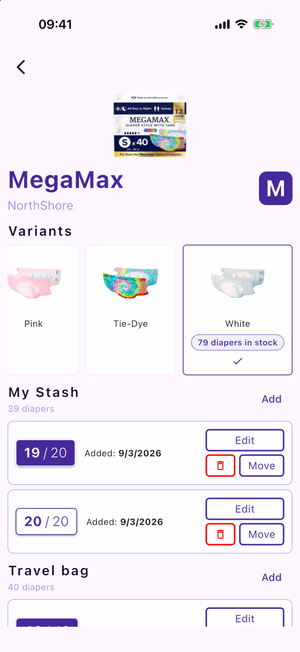
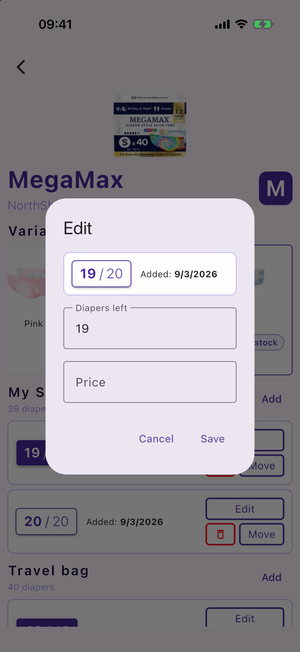
- Edit (disposable) opens a dialog with a Diapers left field (type the number directly — there are no plus/minus buttons) and a Price field. Tap Save.
- Edit reusable diaper opens a dialog with a Clean / In use / Dirty selector and a Requires wash after use switch.
- Forget empty stock at the bottom removes entries whose count has reached zero.
- Deleting an entry only removes it from the stock — your change history is not affected.
Move diapers between stocks
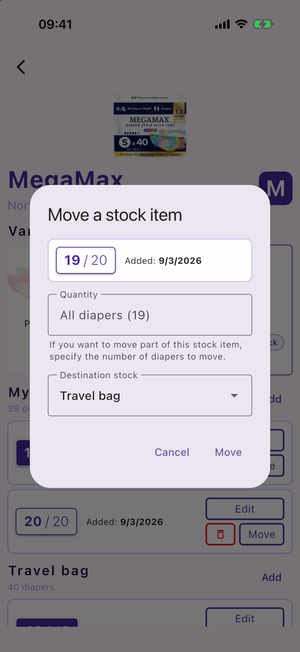
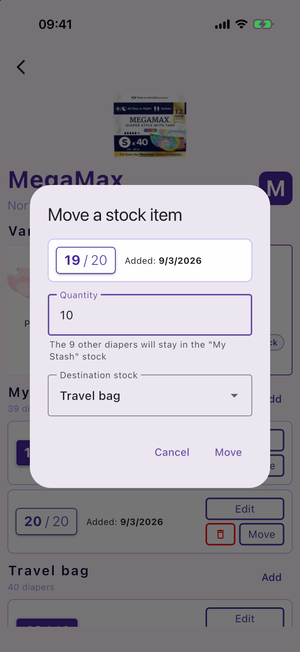
Use Move on a stock entry (in the stock-edit page) to open the Move a stock item dialog.
- Move a complete pack (all diapers) — leave the Quantity field empty. The hint then shows how many will move (for example All diapers (14)) and the whole entry is moved.
- Move a specific number — type a number between 1 and the amount left. The helper text tells you how many diapers stay behind in the source stock.
- Destination stock — choose where the diapers go (the source stock is not listed).
For a reusable diaper, the dialog only has the Destination stock dropdown: a reusable entry is a single physical item, so there is no quantity to split.