Stock page overview
The Stock tab shows what you currently have in stock, grouped by diaper type. This page explains what each part of the screen does; the following pages cover the actions in detail.

Header
The rounded header box is tinted purple for your own stock and pink for a shared stock. It contains the stock selector, the stock name and the counters.
Stock selector
Shown only when you have more than one stock.
A row of small square badges, one per stock, sits at the top of the header. A badge shows the stock's emoji if it has one, otherwise its initials. The selected badge is larger and outlined. You can personalize each badge (emoji and/or colour) from Settings → Stocks.
- Tap a badge to switch stock.
- Long-press a badge, then slide across the row to scrub through stocks.
- Swipe the header left or right to move to the next or previous stock.
An all stocks badge (a small 2×2 colour grid) appears when Show all stocks together is enabled. A trailing eye-off button appears when you have masked stocks and opens the Masked stocks page.
A stock shared with you also gets a badge here; selecting it tints the header pink instead of purple.
Name and counters
- The stock name (hidden when you only have one stock), or All stocks when the all-stocks badge is selected.
- Counter blocks — one big number per diaper category (Diapers, Pads, Boosters, …), each with an optional sub-label such as Reusable or Other.
You choose which categories are counted, whether empty counters are shown, and how hidden categories are folded in. See Header counters.
Type cards
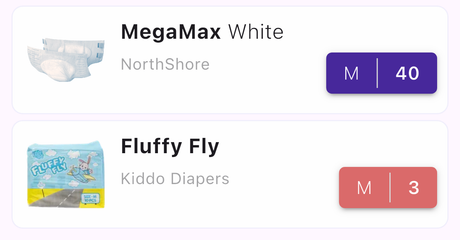
Below the header, each diaper type in stock is a card with:
- The product thumbnail, the type name and, under it, the brand name. A favourite type shows an orange star.
- A right-aligned row of size/quantity buttons — one per size in stock, showing the size label and the remaining count (for example L | 14). Tapping one starts a change. See Starting a change.
Tapping the thumbnail or the name opens that type's page in the catalog.