
Stock
Multiple stocks & customization
Create extra stock locations and personalize them
Multiple stocks let you organise your diapers by where they are stored (bedroom, travel bag, car, …). Each stock has its own name, low-stock threshold and appearance.
Create a stock
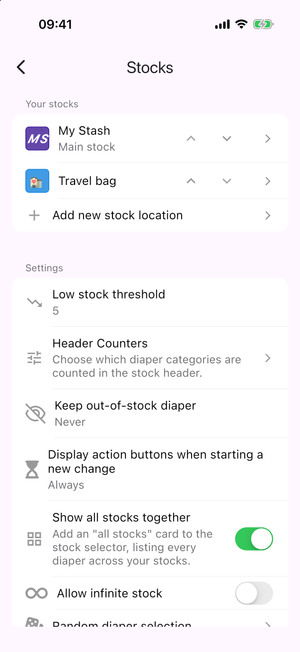
- Go to Settings > Stocks.
- In the Your stocks section, tap Add new stock location.
- Fill in the dialog and tap Save.
The stock dialog has:
- Stock name — required, at least 2 characters.
- Specific low stock threshold — optional; overrides the default threshold for this stock.
- Masked — hides the stock from the main stock view (Hide this stock from main page stock).
- Appearance — emoji and colour (see below).
Reorder and delete
- Use the up/down arrows on each stock tile to reorder them. The first stock is always the Main stock and cannot be deleted. Masked stocks are kept grouped at the bottom.
- Tap a stock, then Delete, to remove a non-main stock. In Confirm stock location deletion, choose Delete to move its contents to the main stock, or Do not transfer to discard them.
Customize a stock
The Appearance picker inside the stock dialog controls how the stock's badge looks, with a live preview.
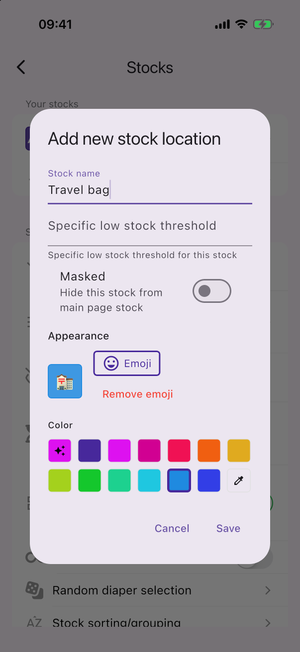
- Emoji — tap Emoji to pick one from the emoji sheet. The badge then shows the emoji instead of the stock's initials. Remove emoji clears it.
- Color— choose:
- Automatic — a colour derived from the stock's position in the list.
- A palette swatch.
- Custom — open the colour wheel and pick any colour.
Nothing is saved until you tap Save in the stock dialog.