Proposing a type for the official catalog
If one of your custom types is a real product that is missing from the official catalog, you can propose it. A moderator reviews the proposal and, if it is accepted, the type is added to the catalog for everyone.
Submit a proposal
- Open the custom type's page and tap Propose addition to official catalog.
- Work through the checklist and tap Submit your proposal.
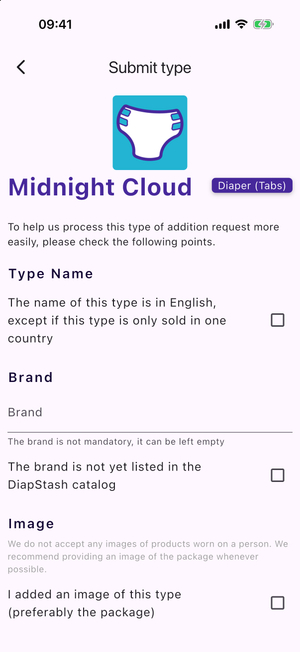
The checklist covers:
- Type Name — confirm the name is in English (unless the product is sold in only one country).
- Brand — confirm you picked the right brand, or tick that the brand is not yet listed and add its Brand name and Brand link.
- Image — confirm you added an image (preferably of the package) and that it shows no human body.
- Information — a required Product page link, optional Comments, and a confirmation that your information and its source are in English.
After submitting, you are told the proposal will be reviewed within a few days and that you will be notified in your in-app notifications.
Follow the review
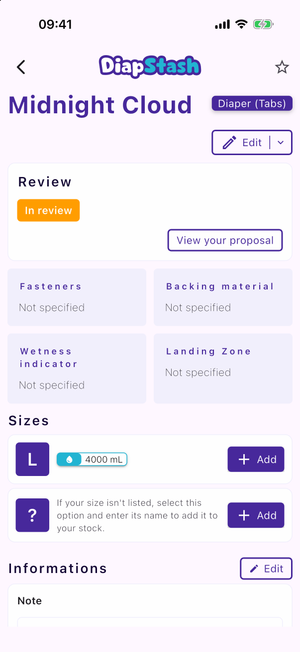
Once a proposal exists, the custom type's page shows a Review card with a status:
- In review (orange)
- Rejected (red)
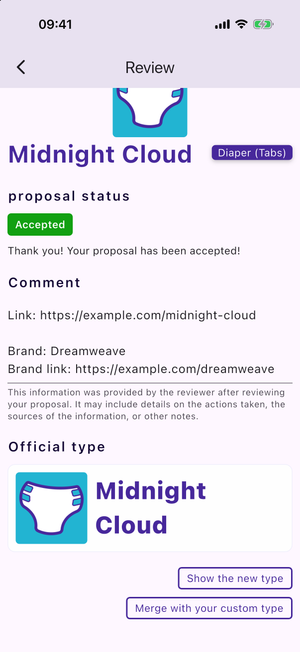
- Accepted (green)
Tap View your proposal to open the review page.
While it is in review
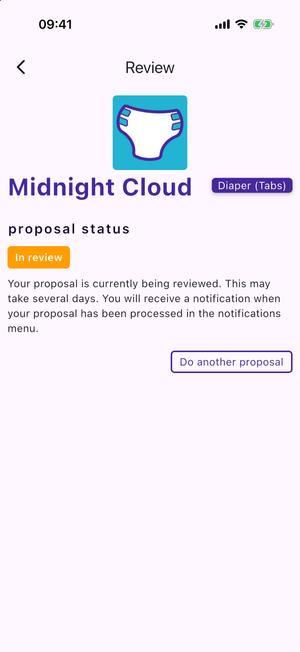
The page explains the review may take several days. You can tap Do another proposal to submit a second one (this is discouraged — duplicates risk rejection).
If it is rejected
- A Reason section shows why the proposal was rejected.
- Edit your custom type — apply the requested changes.
- Submit a new proposal — resubmit once the changes are made.
If it is accepted
- A thank-you message and, when the reviewer left one, a Comment.
- An Official type card showing the resulting catalog entry.
- Show the new type — open the new official type.
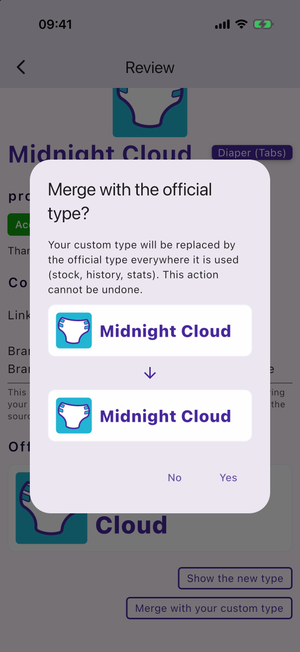
- Merge with your custom type — replace your custom type with the official one (see below).
After the review
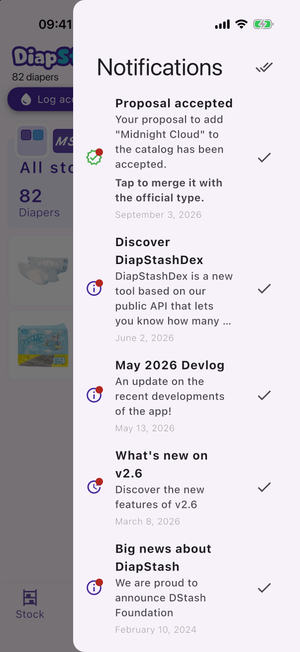
When a proposal is processed you receive an in-app notification, Proposal accepted or Proposal rejected. Find it in the notification menu — the bell icon at the top-right of the main pages (Stock, Catalog, History, Stats). Tapping the notification opens the review page (or the new official type if your custom type has already been removed).
Merge an accepted proposal
Merging replaces your custom type with the new official type everywhere it is used (stock, history, stats). If both have variants, a picker lets you map each custom variant to an official one.