
Ratings, personalization & custom fields
The lower part of every type page is about your own view of a diaper: how you rate it, the images and notes you attach to it, and the custom fields you defined.
Rate a diaper
Available on official types only (and not on generic-brand types).
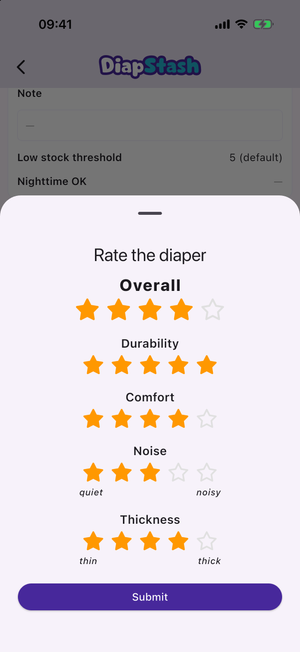
- On the type page, in the Rating section, tap Rate the diaper.
- Set a rating for each criterion by tapping its stars (1 to 5 whole stars).
- Tap Submit.
The five criteria are:
- Overall
- Durability
- Comfort
- Noise — from quiet to noisy
- Thickness — from thin to thick
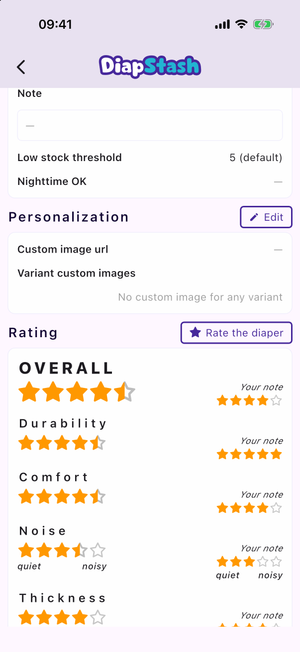
The Rating section shows the Community average (which can include half-stars) next to Your note. Ratings are stored per type and per criterion — not per size or per variant.
Personalize a type
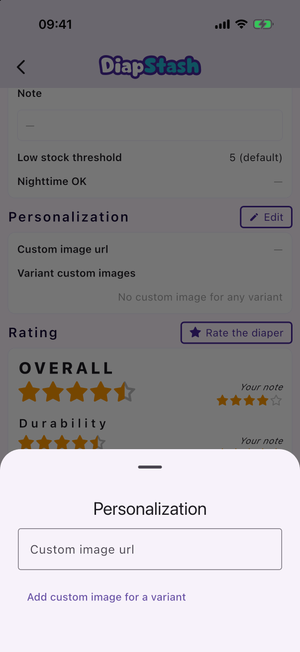
The Personalization section (with its Edit button) lets you override the images shown for a type.
- Custom image url — a URL that replaces the official image everywhere the type appears (carousel, tiles, stock).
- For a type with variants, Add custom image for a variant sets a per-variant override.
Informations and custom fields
The Informations section (with its Edit button) holds your personal data for the type:
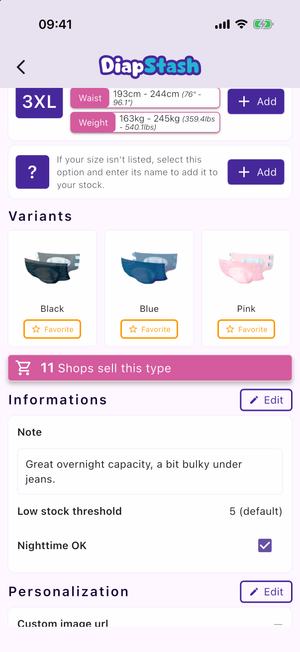
- Note — a free-text personal note. This is different from the community Public note shown in the Features section.
- Low stock threshold — override the default threshold for this type.
- Custom information fields — one row per field you have defined. Edit each value inline in the Informations sheet: a switch for a boolean, a text field with autocomplete for text, a date picker for a date.
Defining custom fields
Custom information fields are created in Settings > Catalog > Type custom information. There are three field types — Text, Boolean and Date — with options such as Filterable, Sortable and Url.
Once defined, a field appears on every type page, feeds the catalog filter (if Filterable) and stock sorting/grouping (if Sortable).
See Type custom information for the full details.